

Key Takeaways
Why Isolating IoT Devices Matters
Every device you add to your home network is an additional entry point. Smart speakers, connected cameras, thermostats, and similar devices - collectively called IoT (Internet of Things) devices - often receive less frequent security updates than computers or phones, and some ship with known vulnerabilities. If one of these devices is compromised, an attacker on the same network segment could potentially reach other devices, including laptops and phones where sensitive data lives.
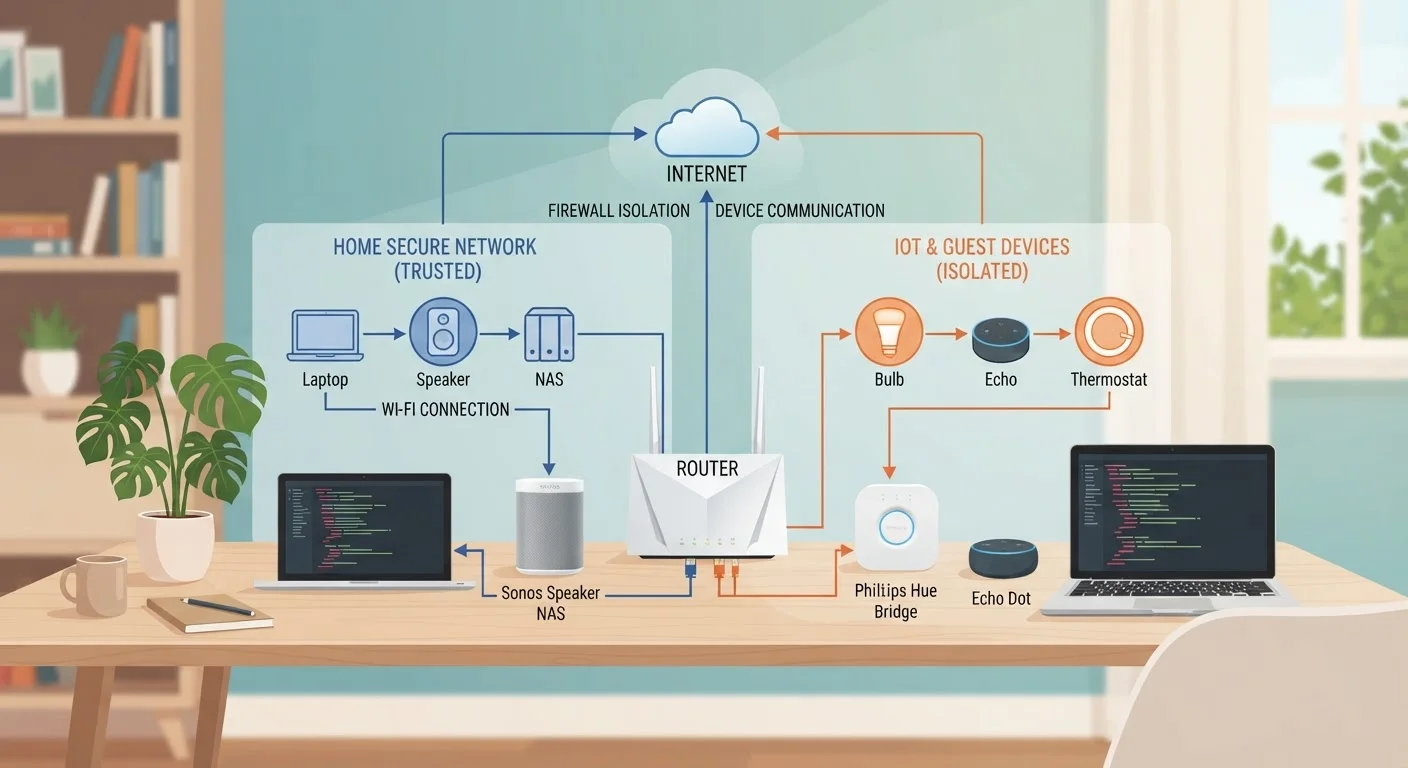
Placing IoT devices on a dedicated, isolated network segment - separate from the network your computers and phones use - limits what a compromised device can access. This concept is sometimes called network segmentation or network isolation. It does not eliminate risk, but it meaningfully contains it. To understand more about how these connected devices fit into your home setup overall, see what a smart home actually is.
Before setting up an IoT segment, it is worth reviewing baseline home network security steps - segmentation works best as part of a broader, layered approach rather than a standalone fix.
Segmentation Is Not a Complete Security Solution
Isolating IoT devices reduces the risk of lateral movement across your network if a device is compromised, but it does not prevent a compromised device from reaching the internet, sending data to external servers, or exploiting vulnerabilities in cloud services. Combine segmentation with regular firmware updates, strong credentials, and disabling unnecessary device features.
What You Need Before You Start
The feasibility of this setup depends primarily on your router. Consumer routers released in roughly the last five years commonly support guest networks; a smaller subset support VLANs, which offer more granular control. Check your router's admin interface or its documentation to confirm what segmentation options are available to you.
If you are evaluating a router upgrade partly for this reason, understanding the trade-offs between router types can help - see mesh networks vs. traditional routers for context on how different setups handle network management. Also consider planning your connected home setup to scale if you expect to add more smart devices over time.
What you will need
Router admin interface
Used to configure guest networks, VLANs, and firewall rules that create the IoT segment.
Router documentation or support page
Provides model-specific instructions for enabling network segmentation features.
Network scanning app (e.g., a generic IP scanner)
Helps verify which devices are connected to which network segment after setup.
Password manager
Stores the unique, strong password you create for the new IoT network.
Step-by-Step: Setting Up Your IoT Network
The steps below cover the general process that applies across most consumer routers. Because admin interfaces differ significantly between manufacturers and models, treat these as a framework and refer to your specific router's documentation for exact menu locations and option names.
Log in to your router's admin interface
Open a web browser on a device already connected to your home network and enter your router's admin IP address - commonly 192.168.1.1 or 192.168.0.1 - into the address bar. Enter your admin credentials. If you have never changed these from the factory defaults, now is a good time to set a strong, unique admin password before proceeding.
Choose your segmentation method: Guest Network or VLAN
There are two practical approaches for home users:
- Guest network: A simpler option available on most consumer routers. It creates a separate SSID (network name) that is typically isolated from your main LAN. Traffic from guest network devices usually cannot reach devices on the primary network.
- VLAN (Virtual Local Area Network): A more granular option available on higher-end consumer and prosumer routers. VLANs allow finer control over which devices can communicate with which, and can be combined with firewall rules.
For most households, a properly configured guest network provides meaningful isolation and is significantly easier to set up. VLANs are worth exploring if your router supports them and you want stricter control.
Enable and configure the IoT network
Navigate to the Wireless or Guest Network section of your router admin interface. Enable the guest network or create a new SSID dedicated to IoT devices. Configure the following:
- Network name (SSID): Choose something descriptive but not personally identifying, such as Home-IoT.
- Password: Use a strong, unique passphrase. IoT devices rarely need password changes once connected, so prioritize strength over memorability.
- Client isolation: Enable this setting if available. It prevents devices on the IoT network from communicating directly with each other and with devices on your main network.
- Band: Many IoT devices only support 2.4 GHz Wi-Fi. If your router separates bands, ensure the IoT network broadcasts on 2.4 GHz.
Connect your IoT devices to the new network
On each smart device - thermostat, camera, smart speaker, smart TV, connected appliance - go through its Wi-Fi settings and switch the connection from your main network to the new IoT SSID. For devices that require a companion app to configure Wi-Fi, use that app and select the new network name when prompted. Re-run any device setup processes required after changing networks.
Verify the segmentation is working
After moving devices, confirm isolation is functioning as expected. From a computer or phone on your main network, try to access the local admin page or local stream of an IoT device (such as a camera's local IP). If client isolation is working correctly, that device should not be reachable from your primary network. You can also use a network scanning app from both network segments to compare which devices are visible from each side.
Keep both networks maintained
Network segmentation is one layer of a broader security posture. Continue to apply firmware updates to your router and all IoT devices, use strong unique passwords on every device, and disable features (like remote access or UPnP) that you do not actively use. Review which devices are on each network segment periodically, especially after adding new smart devices to your home.
Not All Guest Networks Are Equal
Consumer router guest networks vary significantly in how thoroughly they isolate traffic. Some models enable true client isolation; others only block traffic between guests but still allow some LAN access. Review your router's documentation or release notes to confirm exactly what isolation your guest network provides before trusting it for security-sensitive use cases.
After Setup: What to Expect
Once configured, devices on your IoT segment will still connect to the internet normally - they can still reach manufacturer cloud services, receive updates, and be controlled via their apps. What changes is their relationship to your main network: they should no longer be able to directly communicate with your computers, phones, or network-attached storage.
Some functionality may require adjustment. Certain smart home hubs rely on local network discovery (mDNS or similar protocols) to communicate with devices. If a hub or app stops seeing devices after the move, your router may need to be configured to bridge specific local discovery traffic between segments - this varies by router and is documented in advanced settings for devices like mesh systems.
For readers thinking about how different device types fit into this picture, wired vs. wireless smart home device trade-offs is relevant context, particularly if you are considering hardwired devices that connect differently than Wi-Fi-only IoT gear.
Confirm Your Router Supports True Isolation
Not every consumer router that advertises a 'guest network' enforces complete separation from the primary LAN. Before relying on this setup for security, verify in your router's documentation whether inter-network traffic is blocked at the firmware level. If the documentation is unclear, look for user forums or support articles specific to your router model.